
- Log into your Admin Dashboard at www.protrainings.com/login
- Click the Full Roster icon.
- Click the red X in front of the employee's name and then click the Remove button.
- To remove an employee from your company roster:

Note: If you have accidentally removed an employee, you can add them back to your roster. To add them back:
1. Click the Add New Employee icon on your Admin Dashboard.
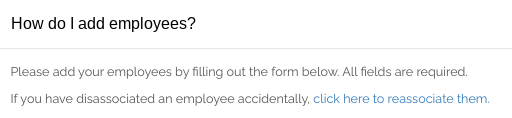
2. Click the small blue question mark icon behind Add Employee.

3. Select the 'click here to re-associate them' link.
4. Search for the employee by last name.
*To add a new employee, see this helpful video.